

Plugins · Display

Display Timer + viewneo

Schedule your screens to switch on and off automatically so every display runs only when it needs to.

What the Display Timer plugin does

The Display Timer plugin is a screen scheduling tool for viewneo that lets you set exactly when each screen or device group powers on and enters standby — without anyone needing to be on site. Screens that run longer than necessary waste energy and shorten hardware lifespan; one configured timer eliminates both problems.

You configure timers once inside device management and the plugin handles the rest. Set a start date, an end date, specific times of day, and the days of the week — then leave it running. If you also use the Live Preview plugin to monitor what is playing remotely, you always have a complete picture of your network’s status without visiting each location.

How it works

  1. Open device management in viewneo — navigate to the screen or device group you want to schedule.
  2. Add a timer — under the “Timer” section, set the activation date range, daily on/off times, and the days of the week it should apply.
  3. Save and let the plugin run — at the scheduled time, the plugin sends the power command to your display. If signal is lost at any point, the monitor automatically enters standby.

Example use cases

  • Retail stores — screens in shop windows turn on thirty minutes before opening and switch off automatically after closing, keeping operating costs in check.
  • Travel agencies — displays in high-footfall locations run from early morning until late evening on weekdays, with a reduced schedule on weekends, all without manual intervention.
  • Fashion boutiques — window displays run extended hours on Fridays and Saturdays to catch evening foot traffic, while returning to standard hours mid-week.

Compatible with

  • viewneo hardware (required)
  • viewneo Professional and viewneo Enterprise — bookable per player, transferable to other players
  • Date-range scheduling

    Define a start date and end date for any timer so seasonal or event-based schedules activate and expire without manual intervention.

  • Time-of-day control

    Set precise on and off times so screens power up before opening and enter standby after closing — every day, automatically.

  • Day-of-week selection

    Choose which days of the week each timer applies to, giving you full control over weekday versus weekend schedules.

  • Automatic standby on signal loss

    When a signal is lost, connected monitors switch to standby mode automatically, reducing wear and energy consumption.

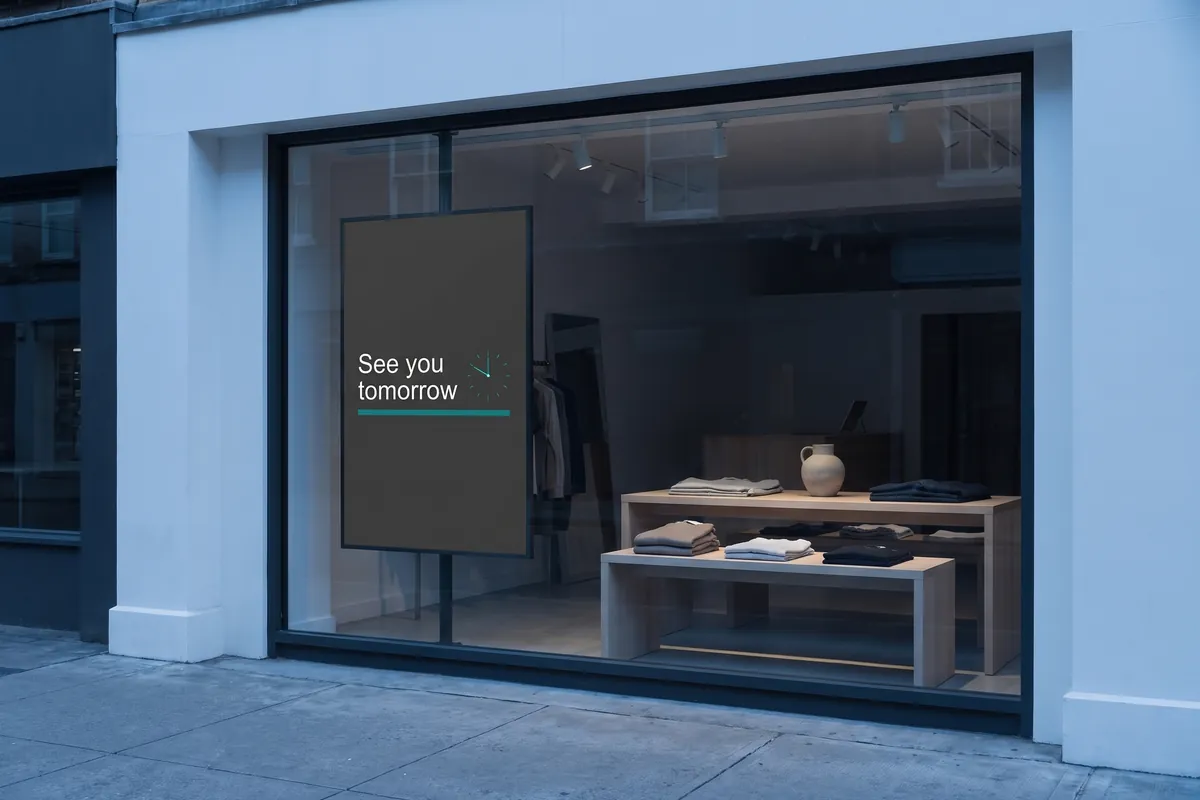
A shop-window display at dusk shows See you tomorrow before it switches to standby.

On screen

Screens on when needed, off when not

The Display Timer plugin schedules automatic power-on and standby for every viewneo screen or device group, without anyone on site.

  • Date-range scheduling for seasonal or event-based on/off timers
  • Precise time-of-day control per day of the week
  • Automatic standby when signal is lost, reducing energy consumption

Frequently asked questions

What does the Display Timer plugin cost?
$0.80 per player and month or $8.00 per player and year — depending on whether your subscription is billed monthly or yearly. The plugin can be booked from viewneo Professional, is enabled free of charge during the 30-day trial and can be re-assigned to another player at any time. All prices are on the pricing page.
Do I need any special hardware to use the Display Timer plugin?
The Display Timer plugin is compatible with viewneo hardware only. Third-party players are not supported.
How does the timer control my screens?
Timers are configured under device management in viewneo. You can assign a timer to an individual screen or an entire device group. When the scheduled time is reached, the plugin sends the on or off signal to the connected display.
Preview of the new contboxx home page with a stele showing the weather

contboxx launches on 1 November

The new content platform contboxx goes live at contboxx.com on 1 November 2026 — with pricing, channels and sign-up. Here is a first look at the home page.