

Plugins · Interactive

Touch Elements + viewneo

Turn static signage into an interactive experience by making on-screen elements respond to touch or click.

What the Touch Elements plugin does

The Touch Elements plugin for viewneo is an interactive layer that turns any element in a template or slide into a touch target — no custom development required. When a viewer touches or clicks a marked element, a configured action fires: navigate to more detail, load a different playlist segment, or collect real-time feedback. The screen goes from broadcasting content to responding to visitors.

This gives you a direct path from passive signage to interactive communication. If you also use the Website Interaction plugin, you can redirect viewers to a live web page mid-playlist — combining local content with up-to-the-minute online information in a single experience.

How it works

  1. Open the Template Designer — in viewneo, open or create a template and place the content you want to make interactive.
  2. Mark elements as touch targets — select any object or region, assign it a touch action (navigate, trigger event, open URL, collect feedback), and save the template.
  3. Publish to your displays — once the updated template is in a playlist and pushed to your players, viewers can interact with those areas on any touch-capable screen.

Example use cases

  • Retail stores — shoppers tap a product image for pricing and availability details, then tap again to return to the main offer overview.
  • Hospitality venues — guests browse dining menus, spa services, or local attractions on a lobby screen, navigating at their own pace.
  • Corporate offices — employees use a lobby display to submit a quick pulse survey or browse upcoming internal events.

Compatible with

  • Touch screens, touch pads, mice, keyboards, and compatible input devices
  • viewneo Professional and viewneo Enterprise — bookable per player, transferable to other players
  • Clickable content areas

    Define any element in a template or slide as a touch target — buttons, images, product tiles — and link each one to a specific action.

  • Event Manager integration

    Touch targets act as triggers in the viewneo Event Manager, letting you build multi-step interactive flows without custom development.

  • Viewer-controlled navigation

    Visitors decide what they want to explore: tap a product tile for detail, select a category to browse further content, or submit feedback directly on screen.

  • Works with any input device

    Compatible with touch screens, touch pads, mice, keyboards, and other pointing devices — no proprietary hardware required.

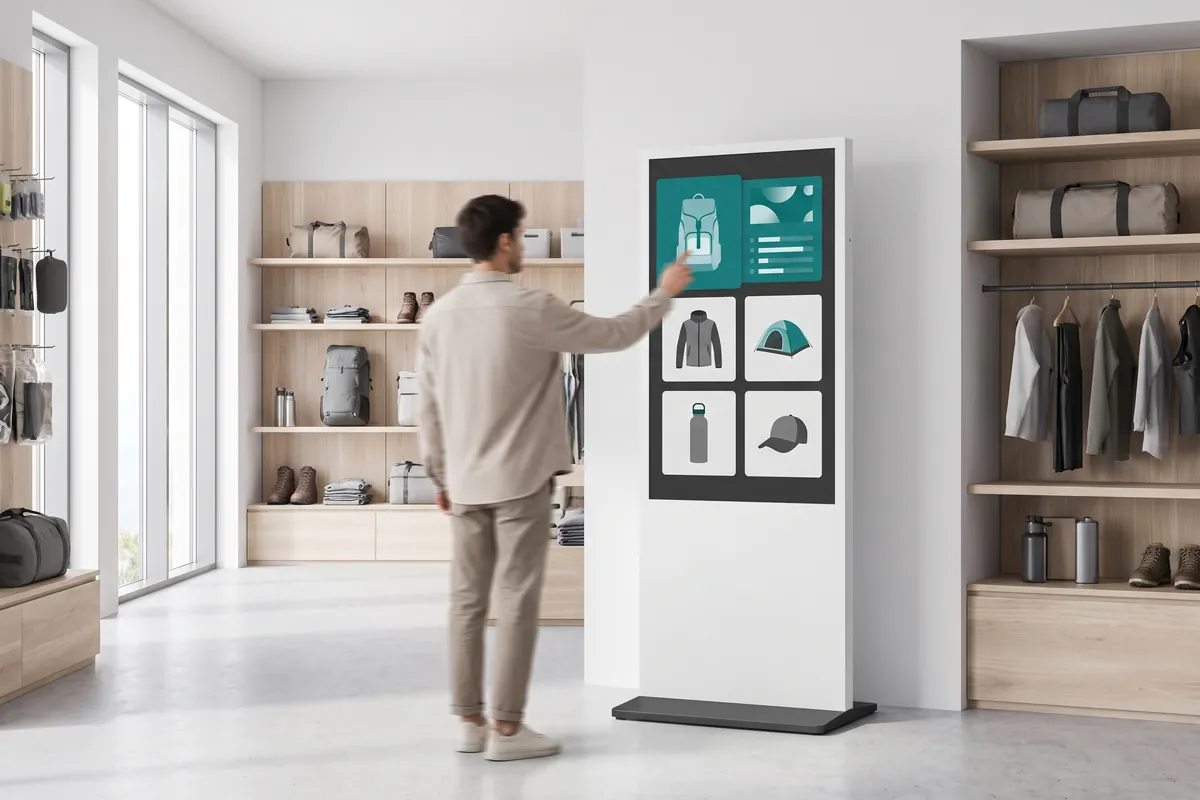
A shopper taps a touch stele that shows a product grid with a detail panel open for a backpack.

On screen

Tappable elements that respond to visitors — no code required

Any content area in a viewneo template becomes a touch target: tap a product image to reveal detail, select a category to navigate further, or trigger a multi-step Event Manager flow — all configured in the Template Designer without development work.

  • Define any button, image, or product tile as a touch target in the Template Designer
  • Triggers integrate with the viewneo Event Manager for multi-step interactive flows
  • Compatible with touch screens, touch pads, mice, keyboards — no proprietary hardware

Frequently asked questions

What does the Touch Elements plugin cost?
$3.60 per player and month or $36.00 per player and year — depending on whether your subscription is billed monthly or yearly. The plugin can be booked from viewneo Professional, is enabled free of charge during the 30-day trial and can be re-assigned to another player at any time. All prices are on the pricing page.
What hardware do I need to use Touch Elements?
You need a touch screen, touch pad, mouse, keyboard, or another input device connected to your viewneo player. No specific viewneo hardware model is required beyond a compatible player.
How do interactive touch areas work on screen?
In the Template Designer inside viewneo, you select any object or region and mark it as a touch target. You then assign an action — such as navigating to a different slide, opening a URL, or triggering an Event Manager flow. When a viewer taps or clicks that area on the live display, the assigned action fires immediately.
Preview of the new contboxx home page with a stele showing the weather

contboxx launches on 1 November

The new content platform contboxx goes live at contboxx.com on 1 November 2026 — with pricing, channels and sign-up. Here is a first look at the home page.