What the Multiframe plugin does
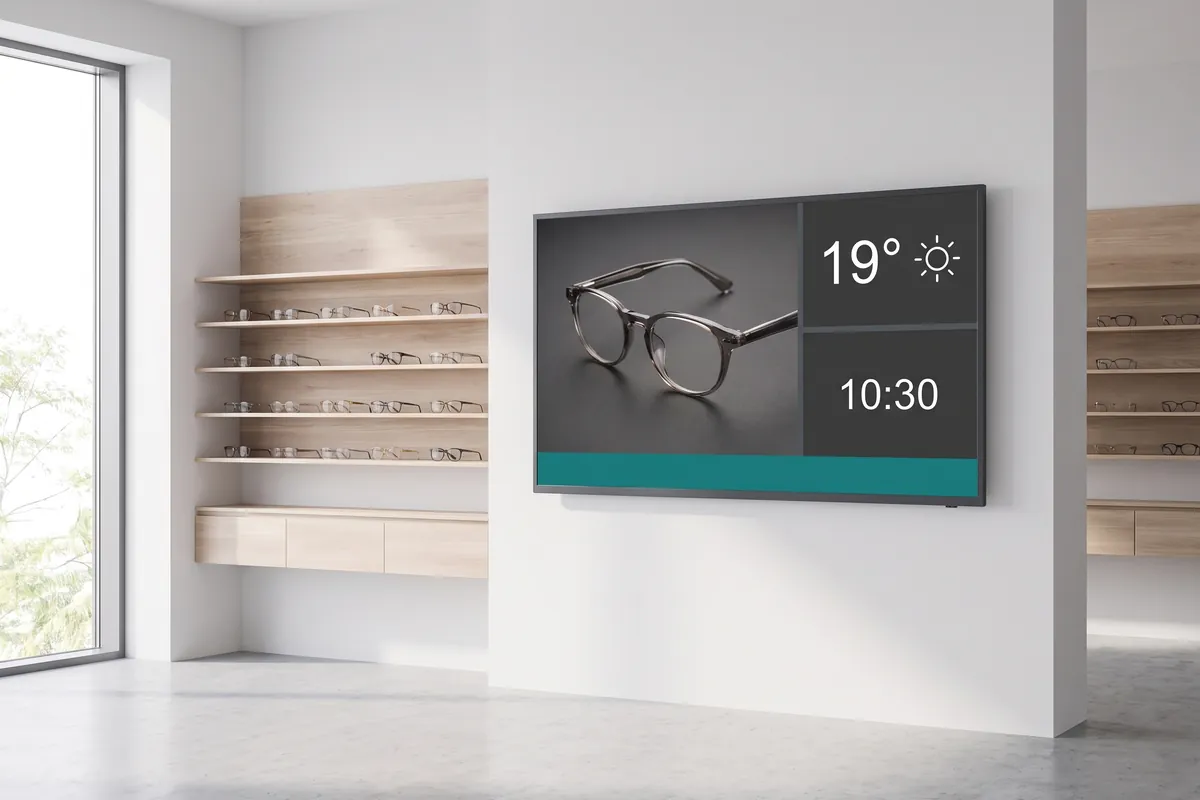
The viewneo Multiframe plugin is a split-screen layout tool that divides a single display into up to four independently running content zones, all driven by one player. Instead of a single playlist, you can run a promotional video in the main zone alongside a live news ticker, a product spotlight, or a clock widget in the surrounding frames — with no additional hardware required.
Within viewneo, the plugin integrates with the standard layout editor. Design your frame configuration once, assign a playlist to each zone, and publish. Because each frame runs its own loop asynchronously, content in one zone does not affect playback in another. For automated content within each frame, the Smart Playlist plugin adds trigger-based scheduling to any zone.
Grid Mode arranges frames in a structured, equal-division layout — quick to configure and well-suited to content that sits naturally side by side. In Frame Mode gives you free positioning on the canvas: frames can overlap, differ in size, or be placed anywhere on the screen. This suits picture-in-picture layouts or a primary content area with a narrower supporting band at the top or bottom.
How it works
- Install the plugin — add Multiframe to your viewneo account from the plugins catalog.
- Design your layout — choose Grid Mode (up to 4 frames in a fixed grid) or In Frame Mode (position frames freely on the canvas).
- Assign playlists to zones — drop content into each frame. Each zone is managed like a standard viewneo playlist — you can add images, videos, widgets, or any other content type.
- Publish to your player — the player renders all frames from a single device. No extra hardware is needed per zone.
Example use cases
- Retail — show a full-screen promotional video in the main zone while a product price list or offer ticker runs in a side frame.
- Corporate offices — display company announcements, a KPI dashboard, and a calendar simultaneously on a single lobby screen.
- Hospitality venues — combine a menu display with event information and a live weather widget without needing extra hardware.
- Transportation hubs — show departure or arrival information in the main frame alongside safety notices and wayfinding content in a secondary zone.
- Showrooms — run a product demonstration video in a large frame with a specifications panel or QR code in a smaller adjacent frame.
Content planning with multiple zones
A common mistake is to fill every zone with dense content, which can make the screen feel cluttered. The most effective Multiframe layouts establish a clear visual hierarchy: one primary zone with the dominant message and one or two supporting zones with brief, glanceable content. You can refresh one zone — say, the daily specials ticker — without touching the main promotional loop.
Compatible with
- viewneo Professional and viewneo Enterprise — bookable per player, transferable to other players
- All viewneo-supported players (one player per screen)