Digital signage is a system that displays images, video, and data on one or more screens — managed remotely through software rather than by plugging in a USB stick or changing a poster. Retail stores use it to update pricing and promotions. Hospitals use it for wayfinding. Corporate offices use it for internal communications. The hardware and software can be combined in many ways, but the setup process follows the same sequence regardless of the use case.
This guide walks through every step, from choosing your first screen to managing content across multiple locations.
What you need before you start
Before buying hardware or signing up for software, answer three questions:
- How many screens do you need, and where? A single reception display has different requirements than 50 screens across five retail sites.
- What content will you show? Static images and simple video need less processing power than live data dashboards or interactive touch content.
- Who will manage the content? A solo manager using a drag-and-drop editor has different needs than a marketing team that needs role-based access and approval workflows.
Having clear answers to these three questions will prevent overbuying hardware and underbuying software — or the reverse.
Minimum requirements for a basic setup:
| Component | What you need |
|---|---|
| Display | Commercial-grade screen with HDMI input (consumer TVs work but are not rated for 16/7 operation) |
| Media player | A Windows, Android, Linux, or macOS device — or a dedicated signage player |
| Network | Stable internet connection at each screen location (Wi-Fi or wired) |
| CMS account | A digital signage content management system (cloud-based is standard) |
1. Choose your screens
Commercial displays are built for continuous operation — typically rated for 16 hours per day (16/7) or 24/7. Consumer televisions are not. For installations that run during business hours and power off overnight, a consumer screen will often last long enough, but for 24/7 retail or hospitality environments, a commercial display is worth the investment.
Key specifications to compare:
- Brightness: 350–500 nits for indoor use; 700+ nits for window-facing displays or bright retail environments.
- Orientation: Landscape is standard. Portrait requires a screen designed for vertical mounting or a player that rotates the output.
- Size: Viewed from 1–2 metres, a 43–55-inch display is typical for retail. Larger spaces need 65–86 inches or a video wall.
- Connectivity: HDMI for a separate player; built-in Android (SoC displays) if you want to run the player software directly on the screen.
You do not need to buy all screens at once. Start with one or two, validate the content workflow, then roll out at scale.
2. Pick a media player
The media player runs the signage software and sends content to the display. Your options:
- Existing device: viewneo runs on Windows, Linux, macOS, and Android. If you have a spare PC or Android tablet on-site, install the viewneo app and use it as a player.
- Dedicated signage player: A compact, purpose-built device like the viewneo 4K Signagebox delivers reliable 4K output in a small form factor and is designed to run 24/7 without thermal issues. Browse the full hardware range.
- SoC display (built-in player): Some commercial displays include an Android player in the screen itself. This reduces cable clutter but limits hardware upgradability.
For most first deployments, a dedicated player is the most reliable choice. It is independent of the screen hardware, easy to replace if it fails, and runs the full signage software stack without compromise.
3. Set up your content management system
A content management system (CMS) is the software that stores your media, assembles playlists, and sends content to your players. Cloud-based CMS platforms — like viewneo — mean there is nothing to install on a server; you manage everything from a browser.
Steps to get a CMS running:
- Create an account. viewneo offers a free plan for one screen — no credit card required to start.
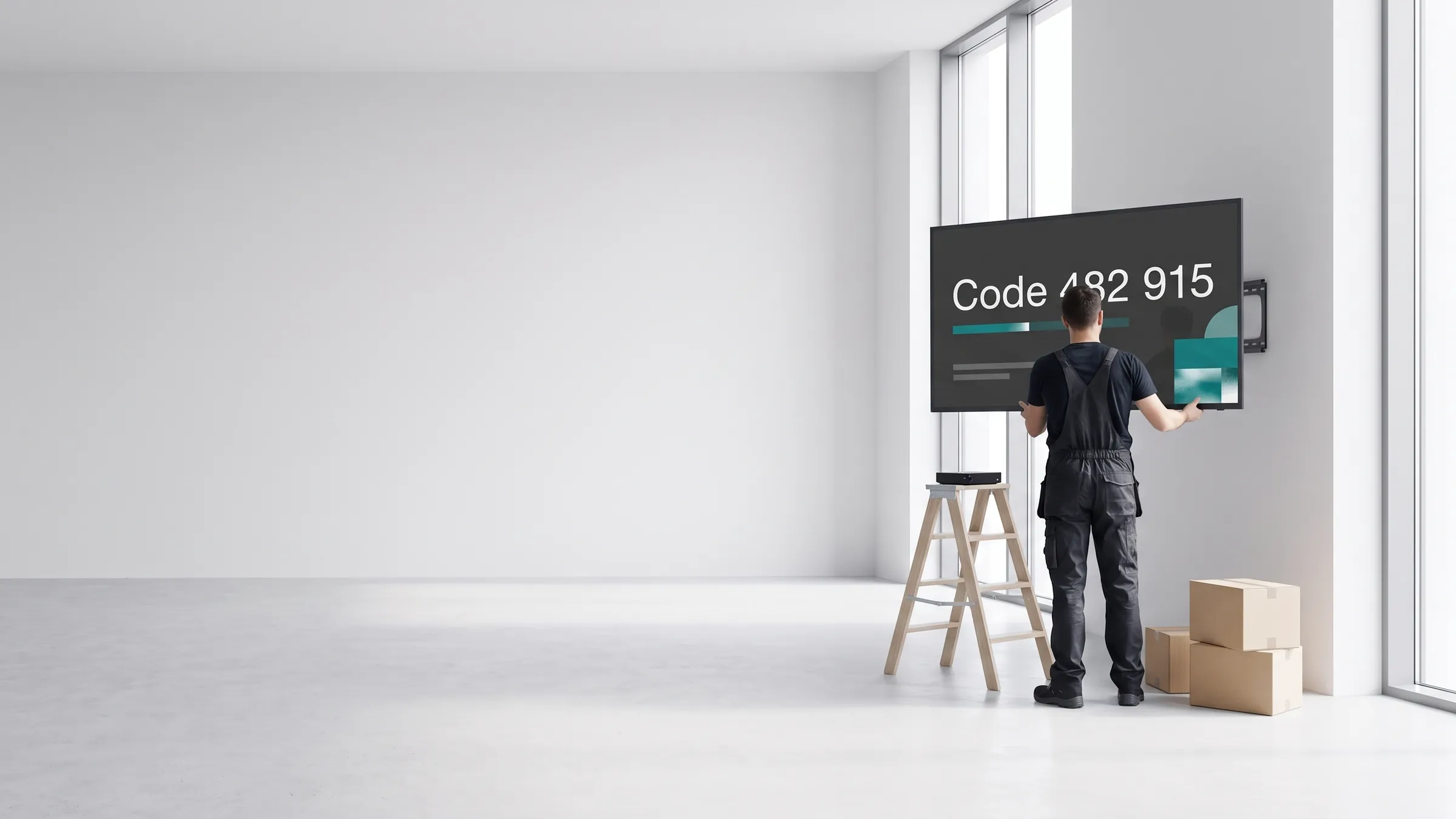
- Install the player app. Download the viewneo app on your media player device (Windows, Android, Linux, or macOS). On first launch, a pairing code appears on screen.
- Pair the player. Enter the code in your viewneo dashboard. The screen immediately shows as connected and is ready to receive content.
- Set the display name and location. Label screens clearly — “Main Entrance Display”, “Floor 2 Breakroom” — so you can target them accurately when scheduling.
For a full walkthrough of the platform layout and features, see how it works.
4. Design your first content
Content design is where most new operators spend the most time. Keep the first deployment simple: one or two pieces of content, tested and working, is better than a complex playlist that is never finished.
Practical checklist for first content:
- Use the correct resolution for your screen (most modern displays: 1920x1080 or 3840x2160 for 4K)
- Keep text large enough to read from the viewing distance (minimum 40pt equivalent for text viewed from 2 metres)
- Limit each slide to one main message
- Use MP4 video encoded at H.264 for broadest compatibility
- Check that brand colours and logos meet any internal brand guidelines
viewneo includes a browser-based content designer. You can upload images and video directly, use pre-built templates, or connect live data sources (RSS, social feeds, weather) via plugins. For more complex content needs — Power BI dashboards, interactive touch menus — those are available as optional add-ons.
5. Schedule and publish
Publishing is the step that makes content go live on screen. Most CMS platforms — including viewneo — use a playlist model: you group pieces of content into a playlist, set how long each item displays, and then schedule the playlist to run on specific screens at specific times.
Basic scheduling model:
- Always-on playlist: Runs continuously on the assigned screens until replaced or paused.
- Time-based scheduling: Content runs only within defined time windows — for example, a breakfast menu from 07:00–10:30, replaced by a lunch menu at 11:00.
- Day-of-week rules: Different content on weekdays vs. weekends.
- Screen group targeting: Push the same playlist to all screens in a location, or target individual screens.
Once published, content appears on screen within seconds over a standard broadband connection. There is no need to visit the screen physically.
6. Manage and update remotely
Remote management is one of the core advantages of cloud-based digital signage over USB-stick or local-server approaches. With viewneo, you can:
- Update content from anywhere. Upload a new image or video from your laptop, add it to a playlist, and it goes live on all assigned screens — whether they are in the same building or across multiple countries.
- Monitor screen health. The dashboard shows which screens are online, what content is currently playing, and alerts you if a player goes offline.
- Adjust schedules in real time. Need to pull a promotion early or extend a campaign? Change the schedule in the dashboard and the change takes effect immediately.
- Scale to more screens. Add a new location by pairing a new player — no reconfiguration of existing screens required.
For organizations managing screens across multiple sites, viewneo’s screen groups and role-based access let different teams manage their own screens while a central administrator maintains oversight. See products for an overview of the full platform capabilities, or check pricing to compare plans by screen count and feature set.
Common mistakes to avoid
Even straightforward setups go wrong in predictable ways. These are the most common:
- Using consumer TVs for 24/7 operation. Consumer displays are not rated for continuous use. They overheat, fail early, and typically void the manufacturer’s warranty if used in a commercial context.
- Underpowered media players. A low-spec Android stick playing 4K video or a data-heavy HTML page will stutter. Match the player to the content complexity.
- No network planning. A screen in a basement or stockroom with weak Wi-Fi will disconnect frequently. Run a wired connection or install a Wi-Fi access point at the screen location.
- Overcomplicating the first playlist. A 20-item playlist with complex transitions and live data feeds is hard to troubleshoot. Start with three items, get them running reliably, then expand.
- No content update process. Who is responsible for updating screens when a promotion ends or a price changes? Define this before launch, not after a screen runs stale content for a week.
- Ignoring screen orientation. If you mount a landscape display in portrait orientation without configuring the player output to rotate, the content will appear sideways.
For a deeper explanation of digital signage concepts and terminology, see the viewneo glossary and the companion guide what is digital signage.